Why screenshots fill up storage faster than photos
Screenshots aren't like regular photos — they happen almost by reflex: three or four for a single order confirmation, a couple for one conversation, the same ticket re-screenshotted several times just in case. Their resolution usually matches your screen's native resolution, so 2-3MB per shot is common, and almost nobody goes back and deletes them on their own. iOS automatically files them into the "Screenshots" smart album, but beyond sorting by date, it won't tell you which ones are actually useless by now.
Open Cleanup, and start with these two numbers
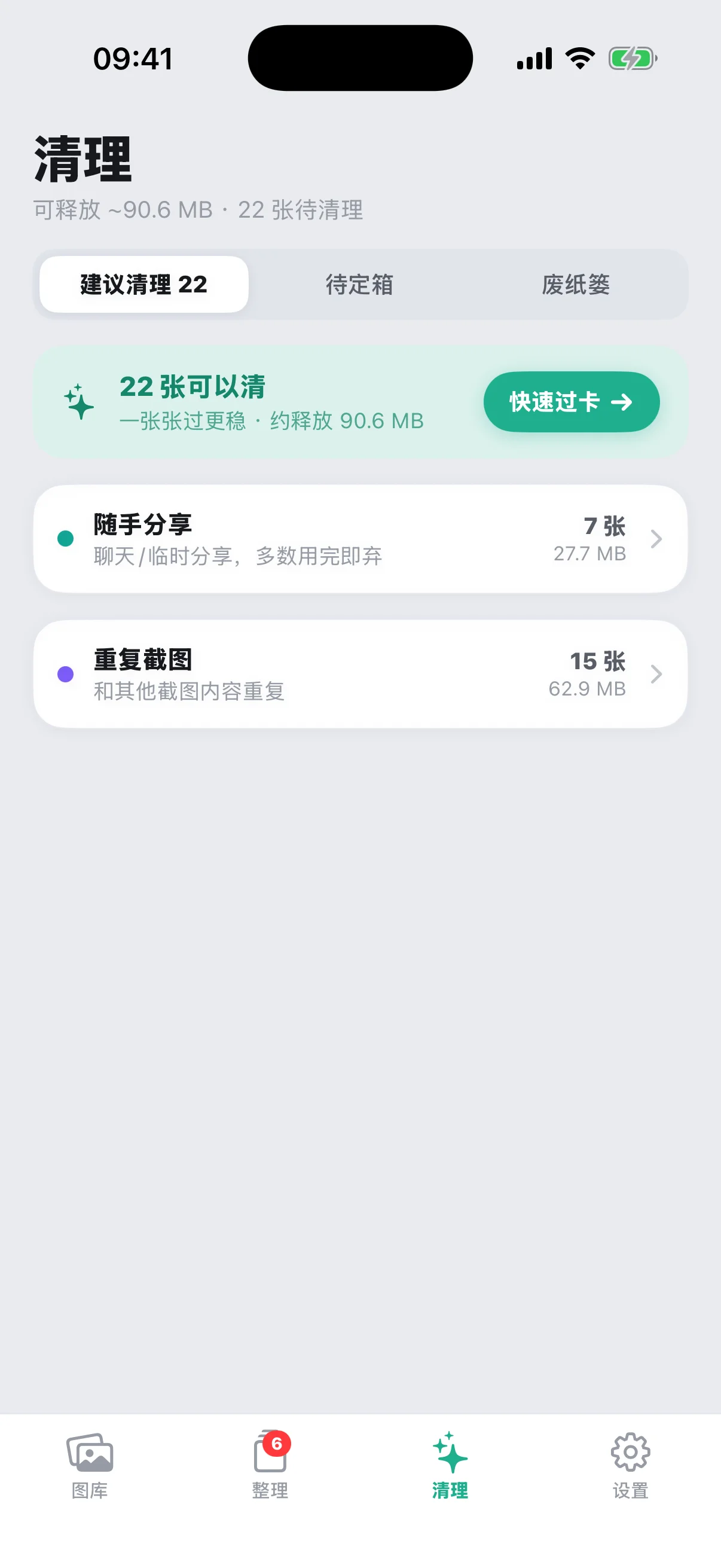
Open the Cleanup tab at the bottom and two numbers appear right at the top — roughly how much storage you could free up, and how many screenshots are waiting to be cleaned. Both numbers come from the cleanup radar's scan of everything in your library, so there's no need to dig through screenshots one by one.
The four categories of screenshots worth cleaning up
The cleanup radar currently recognizes four free categories worth clearing; expand any group to see exactly how many shots are in it and how much space they take up:
- Shared in passing: chat screenshots and quick shares you were done with the moment you sent them;
- Duplicates: screenshots flagged as repeats based on how close the OCR-extracted text is to each other — the judgment is based on how similar the text is, not how the images look, so two screenshots with completely different layouts but near-identical extracted text still land in this group;
- Blurry shots: accidental taps or screenshots that just didn't come out right;
- Not opened in a while: screenshots you haven't reopened in a long time.
Tap into any category and you'll see the actual thumbnails, so you can check each one before deciding — nothing gets deleted for you automatically.
Pro (a one-time purchase, no subscription) adds two more things: visual-similarity matching, which groups burst shots, scrolling captures and repeated captures of the same page by how they look, and flagging expired receipts after reading their content. The free plan does not include these two, while the four free reasons above and the rest of cleanup stay free forever.
Powering through with Quick Swipe
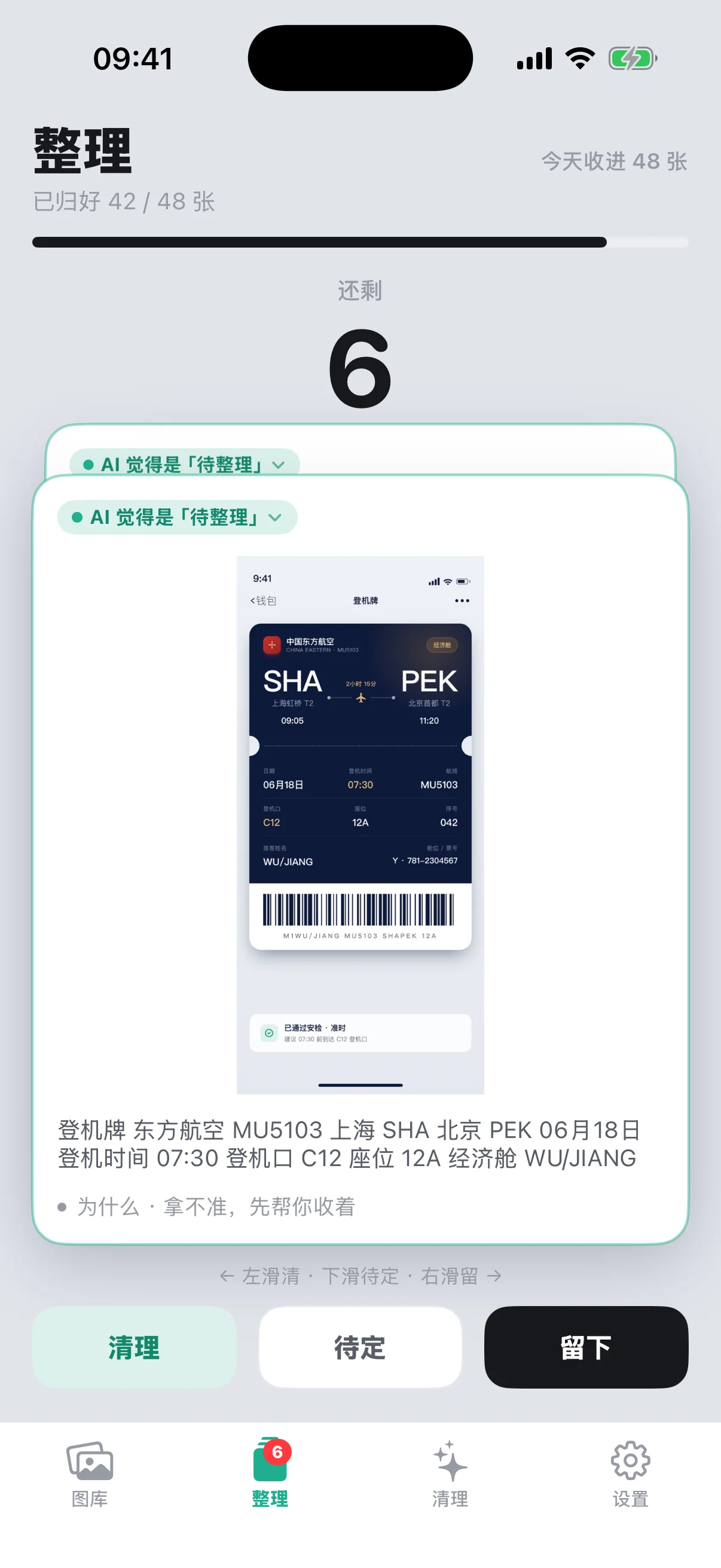
Tap "Quick Swipe" at the top of Cleanup and you'll land in the same card interface used on the Sort tab: swipe left to clear, right to keep, and down to park anything you're not sure about. Going through shots one at a time this way is a lot faster than tapping through a grid — and if you change your mind partway through, you can exit Quick Swipe anytime and handle things individually back in the category list.
Two safety nets, before and after cleanup
Worrying about deleting the wrong thing is completely normal — ScreenStack leaves you an out at two separate points:
- Deleting doesn't wipe anything from your photo library outright: tapping to clear or moving something to trash only happens inside the app — the original screenshot in your system Photos app is completely untouched;
- Trash never empties on its own: everything in it stays put until you go in yourself and tap "Delete permanently" — only then does it trigger iOS's own system-level second confirmation dialog, and only after you agree to that does it actually remove anything from your photo library.
In other words, between clearing a screenshot on the Cleanup tab and it actually disappearing from your phone, there's at minimum a move to trash and a system confirmation dialog in between — one wrong tap can't delete anything for good.
The complete workflow
- Open the Cleanup tab and check the freeable space and pending count at the top;
- Expand each of the four groups — shared in passing, duplicates, blurry shots, and not opened in a while — and take a quick look at what's inside;
- Once it looks right, tap "Quick Swipe" to work through them in bulk — left to clear, right to keep;
- When you're done, check the Trash sub-tab once more and pull back anything you cleared by mistake;
- Once you're sure, go into trash and tap "Delete permanently" to actually free up the space.
This order keeps every step visible and confirmed, so you're never trading away a credential screenshot or something important just to free up a bit of space.
