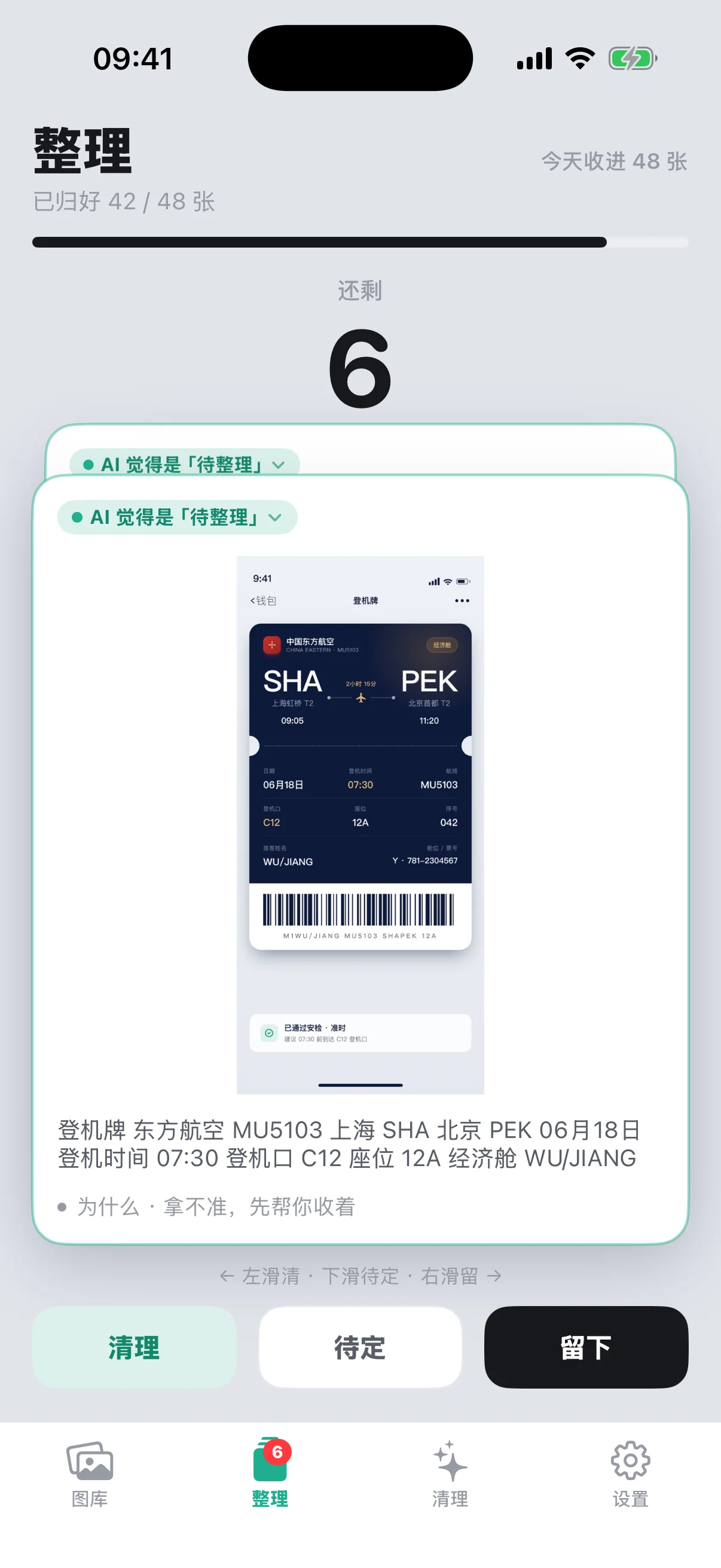
Sort is the "flow gate" — it handles what's new
The Sort tab deals with screenshots that just came in and haven't been looked at yet. Spending two or three minutes swiping through cards — left to clear the obvious shared-in-passing shots, right to keep the useful ones, down to park anything you're not sure about — is itself a way of routing new screenshots as they arrive. The shared-in-passing ones get cleared on the spot, instead of piling up in your library and turning into backlog. Get in the habit of coming back every few days and the to-sort pile never balloons out of control.
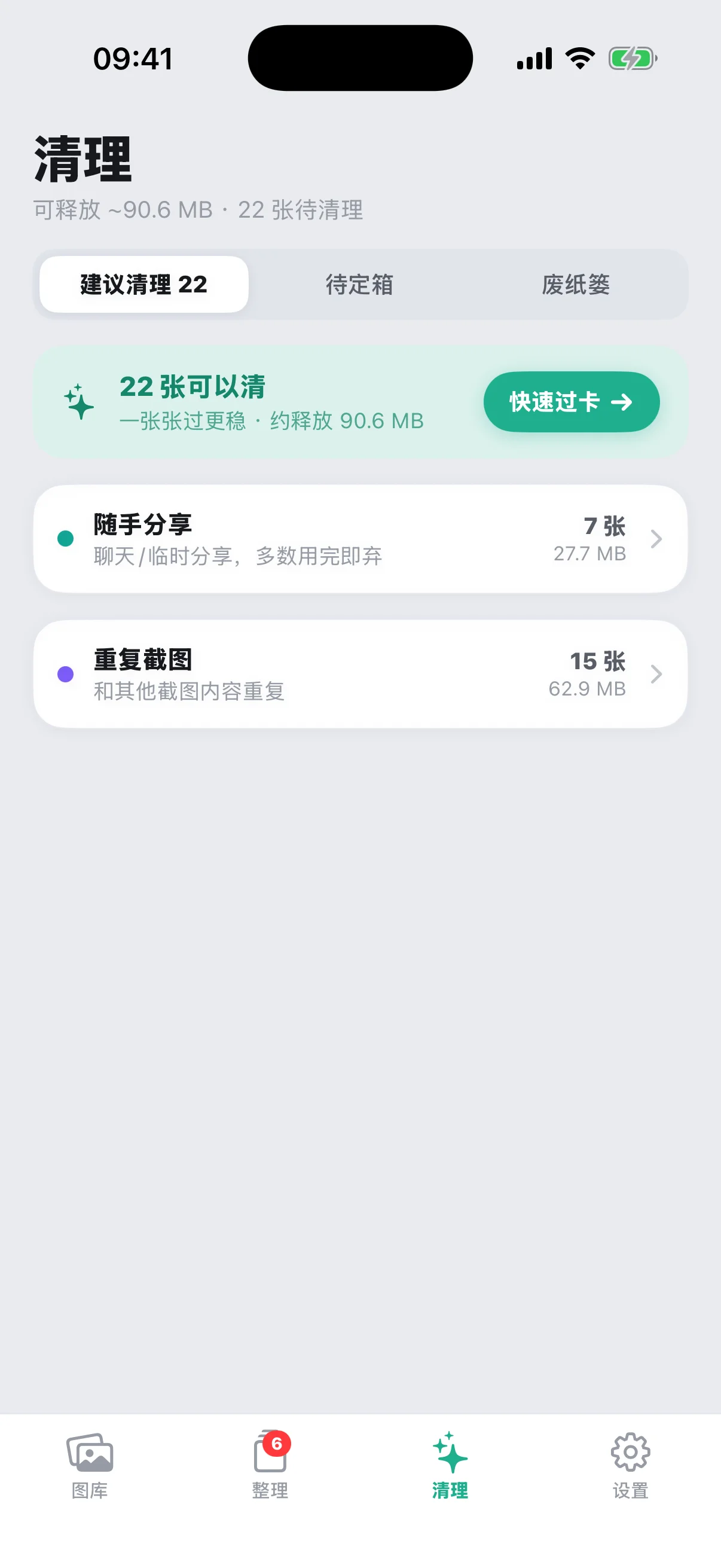
Cleanup is the "backlog audit" — it handles what's piled up
The Cleanup tab deals with screenshots that have already been sitting in your library for a while. It auto-groups them into four categories — shared in passing, duplicates (matched by near-identical extracted text), blurry shots, and not opened in a while — and the natural rhythm is to come back once every week or two and clear out an entire category in one go. This handles the "past," while Sort handles "what just came in" — two different timescales entirely.
What happens if you do it backwards
If you skip Sort for a long stretch, the to-sort pile just keeps growing, and you genuinely lose track of what's actually in your library anymore. Charge straight into Cleanup at that point, and seeing a category with dozens of barely-remembered screenshots ready for bulk deletion tends to make you hesitate — you're not sure whether a credential shot or something still useful is hiding in there, so you'd rather not clear it, and the storage problem stays unsolved. The confidence to delete comes from actually knowing what you're deleting, and that knowledge comes largely from having gone through Sort properly in the first place.
A common wrong path
When the storage-full warning pops up, most people's first instinct is to look at which big apps can go and which videos can be deleted — screenshots are usually the last thing that comes to mind, and the thing people are least willing to touch, since nobody's quite sure whether a still-useful credential is buried in those few hundred shots. The result is often uninstalling a few rarely-used apps for not much space, while screenshots — the actual biggest chunk — go untouched. It's the same underlying problem as charging straight into Cleanup: rushing to find something to delete before you've actually figured out what you're deleting.
How the two work together
A workable rhythm: sort a few whenever you have a spare moment, rather than letting it pile up to hundreds before you think about it; check the freeable-space estimate on Cleanup once every week or two, and do a batch pass when you actually need to free up room. Sort keeps the to-sort pile from spiraling out of control, and Cleanup keeps the backlog from sitting untouched — the order can't be reversed, and you can't just do one and skip the other.
When it's fine to jump straight into Cleanup
If your to-sort pile is already cleared out or down to just a handful, and the freeable-space estimate at the top of Cleanup looks substantial, going straight into a batch cleanup makes sense. But if you've still got dozens of unlooked-at shots waiting to be sorted, it's worth spending a few minutes clearing that batch first — you'll have a much clearer sense of what's actually worth bulk-deleting once you get to Cleanup.
Make the call on new screenshots as they come in, and your library never turns into a mess nobody can account for — and by the time you get to a batch cleanup, you'll actually feel confident letting go.
