The foundation: on-device OCR that runs the moment a shot comes in
The moment a screenshot lands in your library, ScreenStack uses Apple's Vision framework in the background to extract every bit of recognizable text and store it as searchable content. So even if the filename is a random string of numbers, as long as words like "JD.com" or "verification code" appear somewhere in the image, typing those words into the search bar finds it — no need to remember a filename or when you took it. The whole recognition and search process runs entirely on your device; no internet connection is required, and the screenshot itself is never uploaded to any server.
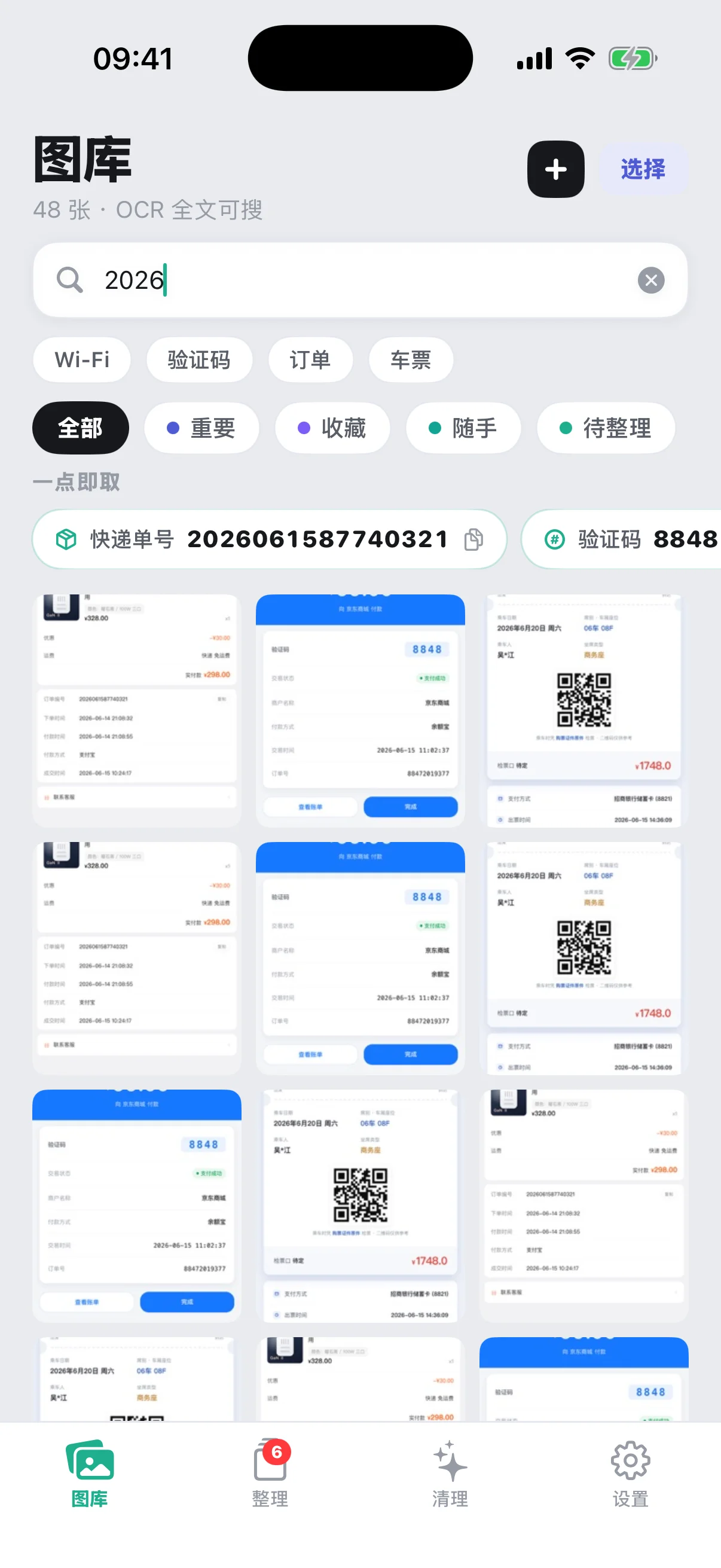
Suggested keyword pills up top: tap these first when you don't know what to search
Below the search bar on the Library tab is a row of pills — Wi-Fi, verification code, order, ticket — pulled from the kinds of terms that show up most often across common screenshot types. Tap one and it filters straight to matching content, faster than typing it out yourself. These pills are generated dynamically from what's actually in your library, not a fixed set of four words, so the pills you see will differ from the next person's — they reflect whatever content types come up most often in your own screenshots.
Multiple keywords have to all hit: AND logic
If you type more than one word into the search bar — say "JD.com" and "8848" at the same time — only screenshots where both words show up in the recognized text get listed; a match on just one word doesn't count. This lets you narrow a big result set down to one or two shots quickly, instead of paging through everything.
Narrowing further with intent filters
Below the search bar is another row of filter pills — All / Important / Saved / Casual / To sort — and these stack on top of keyword search rather than replacing it. Search "order" while "Important" is selected, for instance, and you'll only see shots that are both marked important and contain "order" in their recognized text — screenshots tagged casual that happen to mention orders too won't get mixed in.
One-tap copy for credential results
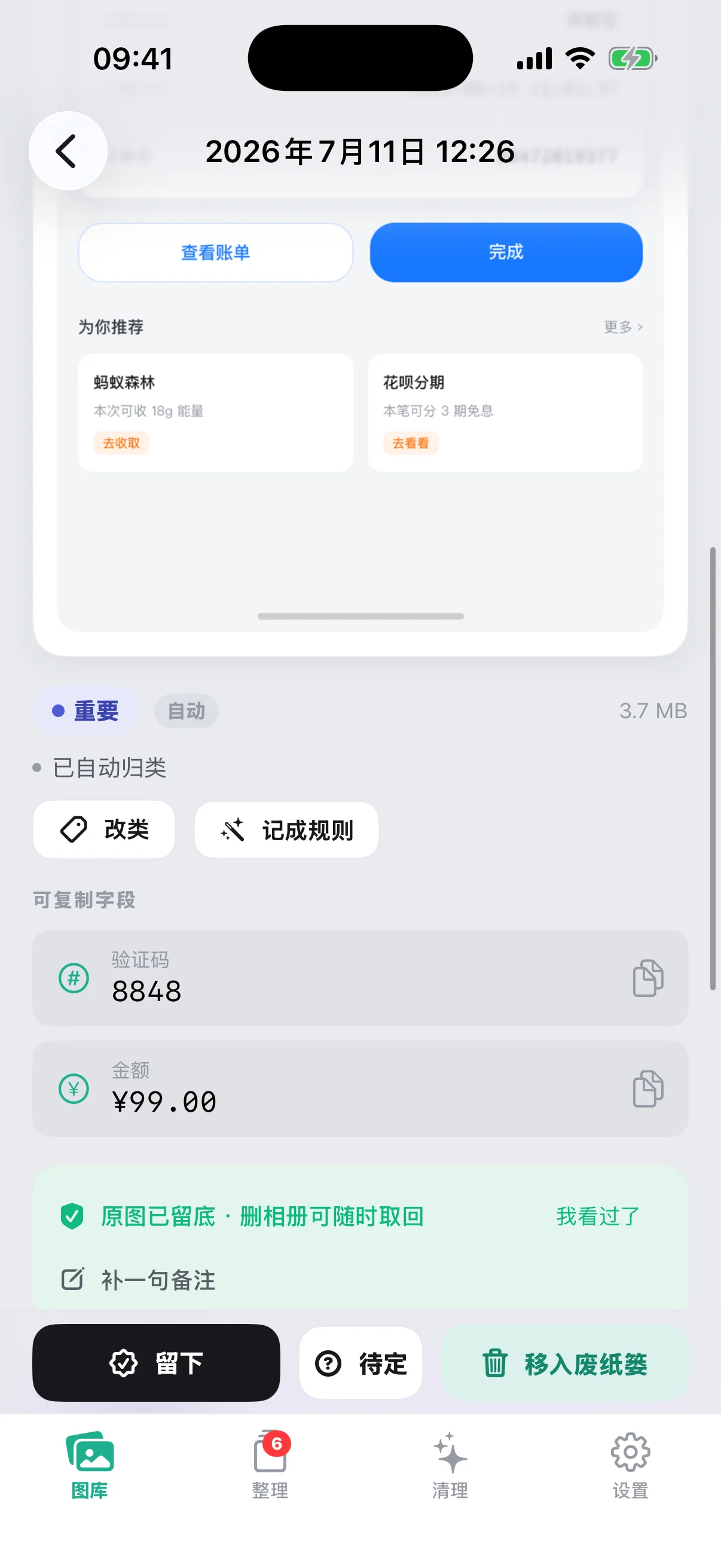
If any screenshot in your search results has a recognized field like a verification code, an amount, or a tracking number, a copyable field card pops up right above the results — tap the icon and it's copied to your clipboard. No need to open the detail view, hunt for the field, and then copy it; this skips both of those steps.
Two search examples
Say you're looking for an order number from something you bought online last month: open Library, tap the "order" keyword pill to filter down to order-related screenshots first. If there are still too many, add a merchant name as a second keyword to narrow it further. If the shot that matches has a recognized order number field, a copyable bar shows up right at the top — you never have to open the image itself.
Or say you're at a friend's place trying to get on their Wi-Fi, and you remember screenshotting the password sticker on the back of a router at some point — but have no idea when. Just tap the "Wi-Fi" keyword pill: no need to recall a date or a keyword, and every screenshot in your library with Wi-Fi-related text pops up directly. If a password field gets recognized, that's one tap to copy too — no more squinting at the image trying to make out the string of characters.
