What the system Photos app already does
Let's start with what the system Photos app can actually do, without over- or under-selling it. Screenshots can be browsed by date in Photos. According to Apple's support pages, iPhone XS, XR or later with iOS 15 or later has Live Text, so you can touch and hold text in a photo to select, copy or translate it. From iOS 16 Photos groups duplicate photos and videos in a Duplicates album, and deleted photos and videos stay in Recently Deleted for 30 days. For someone with few screenshots who only looks back now and then, that is enough. Sources are in the table below.
A real scenario: finding an order screenshot from three weeks ago
Say you screenshotted an order confirmation page three weeks ago, and now you need the order number to process a return. In the system Photos app, you first have to remember roughly what day you took it, go into the "Screenshots" album, and scroll back along the timeline. Once you find it, you still have to open it, zoom in, and copy the digits down yourself. If you take a lot of screenshots and shot other things that same day, this hunting-around can easily take a minute or two.
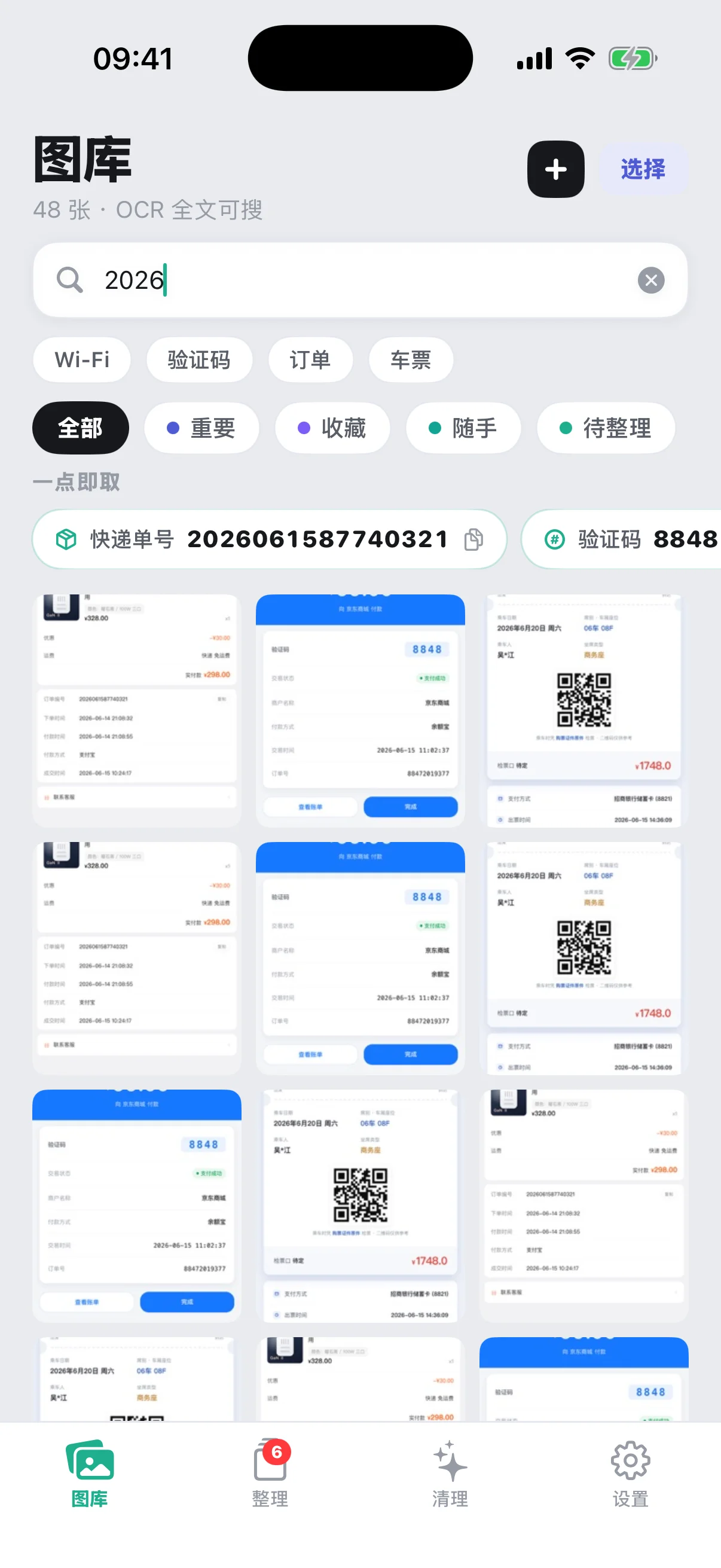
In ScreenStack, just type "order" or "order number" into the Library search bar. If the matching screenshot has a recognized order number field, a copyable field bar pops up right above the results — one tap on the icon copies it. You never have to open the image itself to hunt for the digits, select them, and copy them. This is the most concrete place where the extra bit of organizing actually pays for itself.
Three things ScreenStack does on top of that
- Automatic sorting by intent: four categories — important, saved, casual, to sort — instead of every screenshot dumped into one timeline;
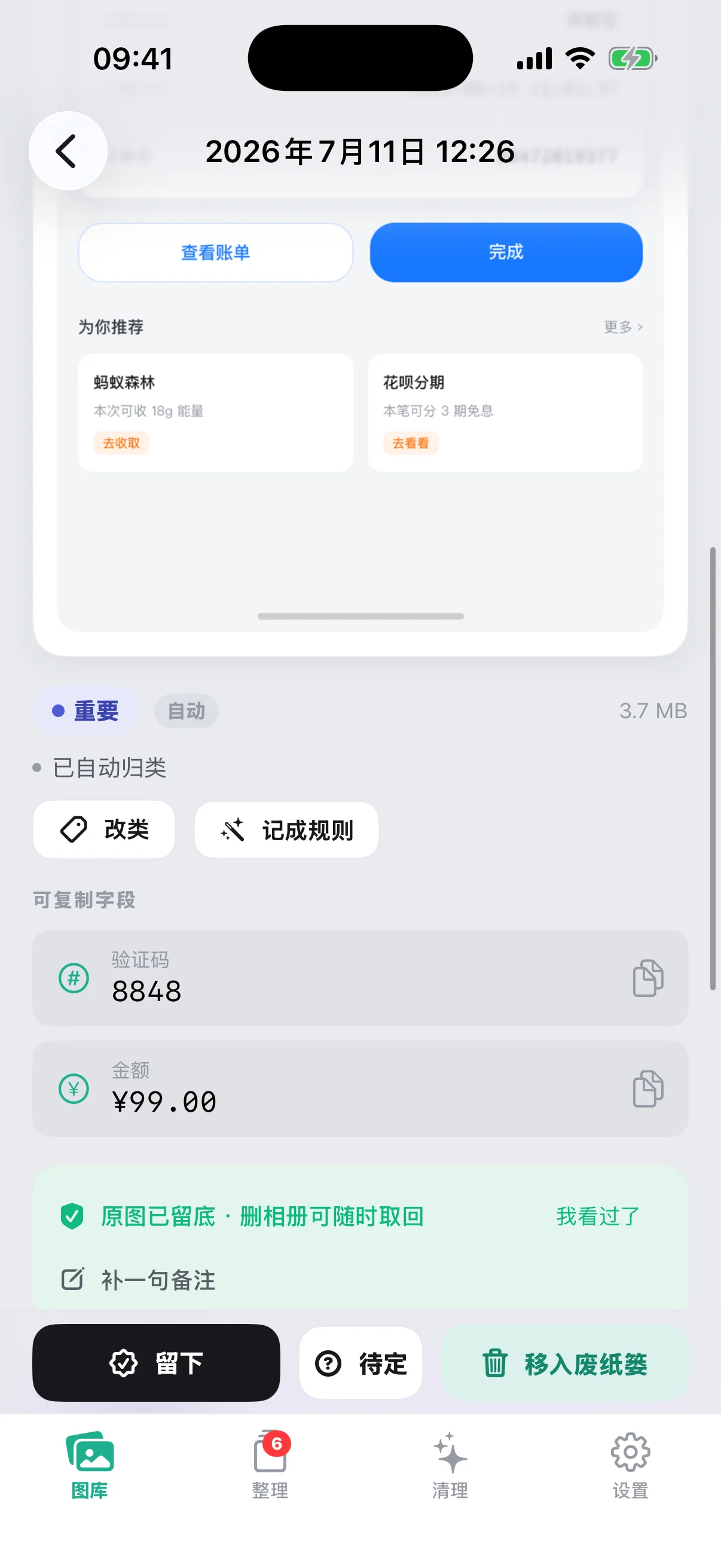
- Credential fields you can copy directly: verification codes, amounts, and order numbers get recognized and become one-tap copyable, no need to hunt for digits in the image yourself;
- Two safety nets before deletion: moving to trash never touches the original in your photo library, and permanently deleting still requires one more iOS system confirmation.
We did not see an equivalent for these on the Apple pages above, so they are marked "not verified", which does not prove they do not exist. The system Photos app can store, browse by date and recognize text, but by what we found it does not sort screenshots by purpose and does not pull a verification code out as a copyable field.
Side by side (facts about the other side come with sources)
Facts about the other side come from Apple's own support pages, verified on 2026-10-13. "Not verified" means we did not see it on an official page, not that it does not exist. Apple's features change with iOS versions, so check how your own phone behaves.
| Item | This product | The other side | Source (verified 2026-10-13) |
|---|---|---|---|
| Getting text out of an image | Recognized on the phone at import, stored and searchable | Live Text: iPhone XS, XR or later with iOS 15 or later; touch and hold text in a photo to select, copy or translate | Apple Support: Copy and translate text from photos |
| Duplicates | The free plan judges duplicates by how close the recognized text is; Pro adds visual-similarity matching | From iOS 16 Photos groups duplicate photos and videos in a Duplicates album, and the extra copies go to Recently Deleted after a merge | Apple Support: Duplicates album |
| Getting a deleted item back | It first goes to an in-app trash and leaves the original in Photos alone; a permanent delete needs the system confirmation, and the original then sits in Recently Deleted | Deleted photos and videos stay in Recently Deleted for 30 days | Apple Support: Delete photos |
| Sorting by purpose, copyable receipt fields | Yes: important, saved, casual, to sort; verification codes, amounts and order numbers copy in one tap | No such feature seen on the pages above: not verified | — |
| Cost | The free plan includes import, sorting, search and basic cleanup; Pro is a one-time purchase (smart cleanup + credential wallet) | Built in | App Store listing |
When you genuinely don't need to install anything extra
If you don't take many screenshots to begin with, rarely need to dig up credential-type content, and have never found scrolling through Photos annoying, the built-in capabilities are probably already enough — there's no need to install an extra app just for these features. ScreenStack fits better if you take a lot of screenshots, regularly need to look back and verify credential info, or find yourself agonizing over whether to delete screenshots to the point it's affecting your storage.
Worth it or not: ask yourself these two questions
To decide, ask yourself two questions: first, has your screenshot count grown large enough that scrolling through the system Photos timeline feels like a chore? Second, do you have credential-type screenshots — verification codes, order numbers — that you need repeatedly and don't want to copy out by hand? If the answer to either is yes, the small extra bit of management overhead is probably worth it. If neither applies, the system Photos app is genuinely enough on its own.
