Library: the overview and search hub for everything
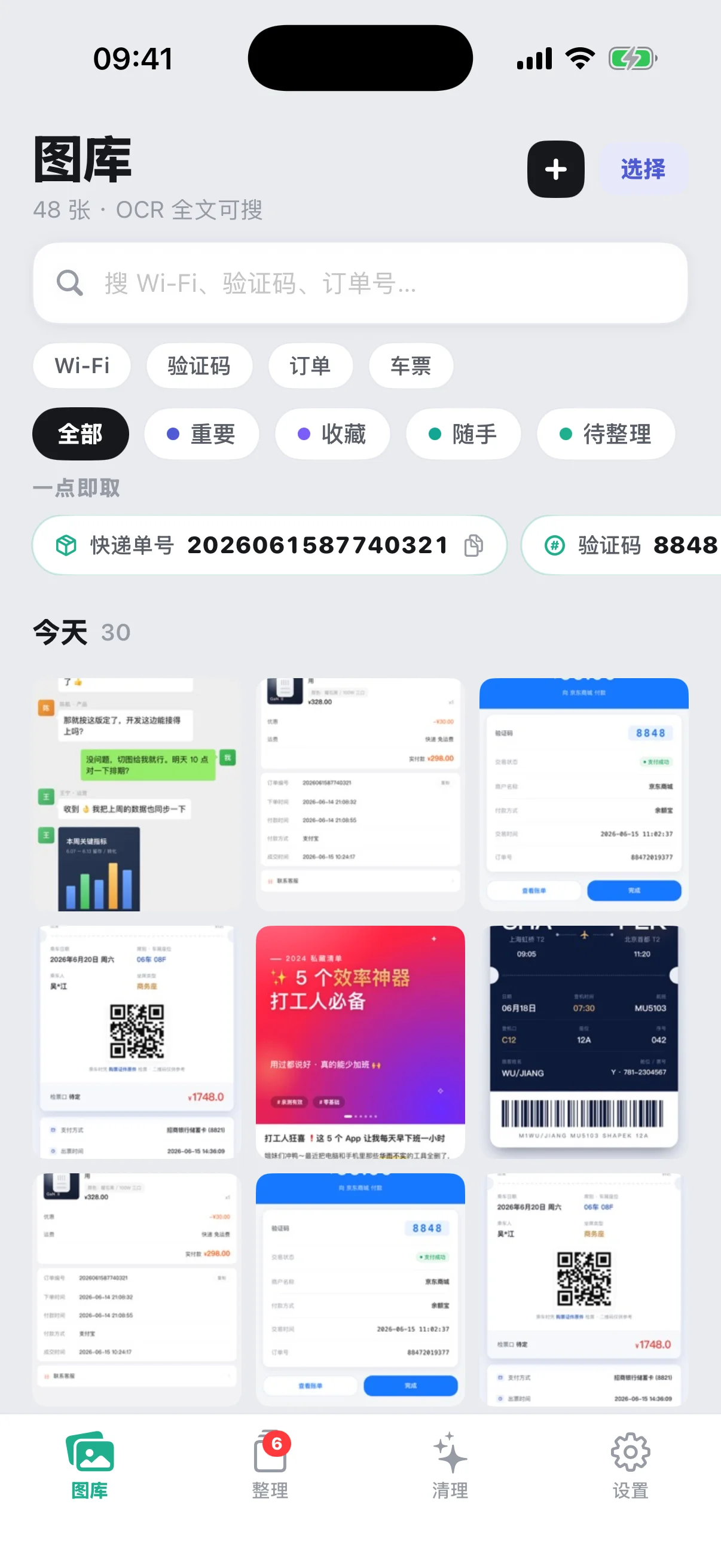
Library is the first tab open by default. The total count shows up at the top — something like "48 shots · full-text OCR searchable" — with a search bar and a row of suggested keyword pills (Wi-Fi, verification code, order, ticket) right below, then intent filters (All, Important, Saved, Casual, To sort), and a grid of screenshots sorted by date at the bottom. The first time you open this after importing, you'll see everything pulled in automatically from your system Screenshots album, already OCR'd.
Sort: work through the to-sort pile one shot at a time
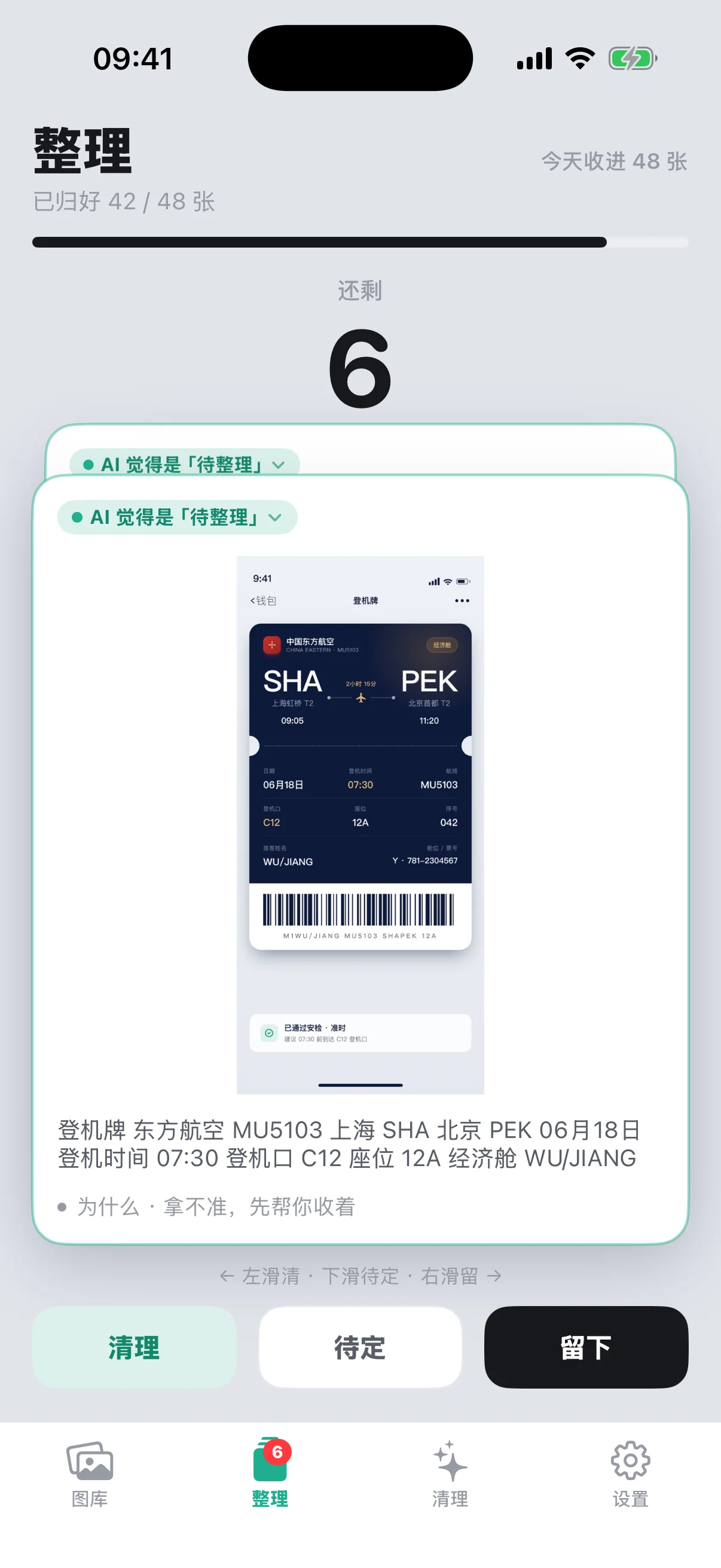
Tap Sort and you'll see "N shots came in today" and a "M/N sorted" progress bar, with a stack of cards below — each one labeled with the AI's guessed intent, something like "AI thinks: to sort," with swipe hints printed right underneath the card. Swipe left to clear, right to keep, down to park it. If the AI guesses wrong, tap it open and fix the category on the spot — correct it once and it's remembered, so similar content sorts correctly on its own after that, without you having to fix it by hand every time.
Cleanup: come back periodically to work through the backlog
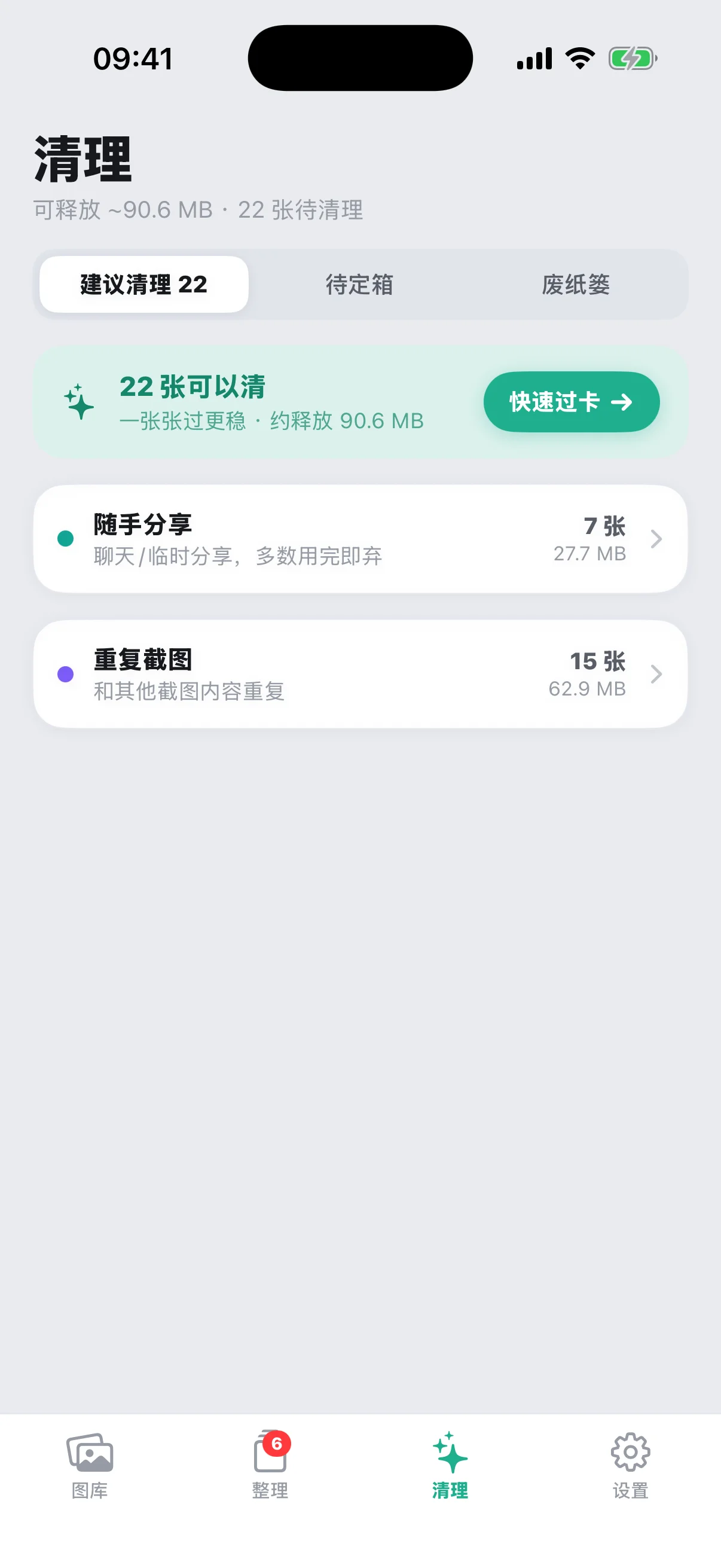
Cleanup shows roughly how much storage you can free up and how many shots are pending, right at the top, with suggestions grouped below into four categories: shared in passing, duplicates, blurry shots, and not opened in a while. This tab works better as something you check back on periodically for a batch cleanup, rather than tapping every day — we cover the exact steps in a separate post on this site. Up top there are also two sub-tabs, "Parked" and "Trash," which correspond to shots you parked while sorting, and shots already moved to trash but not yet permanently deleted.
Settings: a few options beginners tend to miss
Settings has a handful of things tucked away that are easy to overlook but genuinely useful:
- Local rule dictionary: correcting a wrong category once during sorting turns into a rule, and every one of these rules is visible and deletable in Settings — nothing about it is a black box;
- AI enhancement (bring your own key): if you want sharper sorting, you can add your own API key here — it supports 17 major LLM providers plus a custom OpenAI-compatible option. Leaving it blank doesn't affect on-device OCR, search, or sorting at all — every core feature still works;
- Safe Backup: full library backup and restore exports original copies, recognized text, receipt fields, notes, tags and sort status as an offline backup, for use before a phone switch. It is free; see backing up before you switch phones;
- ScreenStack Pro: a one-time purchase that unlocks smart cleanup and the credential wallet, and leaves the free import, sorting, search and basic cleanup untouched;
- Gatheon family entry point: the other tools from the same developer are introduced here with links to each, but every product is independent and none of them share data;
- A note on appearance: beginners often come here looking for a dark mode toggle. Dark mode currently follows your system appearance automatically — there's no separate manual switch inside the app. Change your system's appearance setting and ScreenStack follows along.
A suggested first-day walkthrough
- Start with Library — confirm the imported screenshot count roughly matches what you'd expect, and that OCR is already running;
- Go to Sort and work through the current to-sort batch, fixing a few miscategorized ones along the way;
- Take a quick look at Cleanup to see if there's space you could free up right away — no rush to act on it immediately;
- If you want more accurate auto-sorting, go add an API key in Settings; if not, skip it entirely — it won't affect how the app works.
Go through it in this order and you'll have a solid feel for what each of the four tabs is for.
